Cost control
Reduce RunsOn spend with spot tuning and right-sizing, then keep it in check with budgets, scheduled cost reports, tags, and automatic termination safeguards.
RunsOn takes cost control seriously, since you will be tempted to use beefy runners to expedite your workflows. This page covers both sides of the problem: reducing spend through spot tuning and right-sizing, and keeping it in check with a daily AWS budget, scheduled cost reports, cost-allocation tags, and automatic termination safeguards.
Optimizing for Less Spot Interruption#
Spot instances can be interrupted when AWS needs the capacity back, which can disrupt your workflows. Here are strategies to minimize spot interruptions:
Diversify Instance Types#
The most effective way to reduce spot interruptions is to diversify your instance type selection:
runners: my-custom-runner: # Include multiple families instead of restricting to one. family: ["m8", "c8", "r8"] # Use ram and cpu options to restrict the instance type among the wide family range. ram: [8, 16] # Specify a range instead of a single value cpu: [2, 8] # Allows more flexibilityOr using job label syntax:
runs-on: runs-on=${{ github.run_id }}/family=m8+c8+r8/ram=8+16/cpu=2+8Use Capacity-Optimized Allocation Strategy#
For better stability, switch the allocation strategy to capacity-optimized, which draws from the pools with the most available capacity:
runners: my-custom-runner: spot: capacity-optimized # or spot: coOr per job:
runs-on: runs-on=${{ github.run_id }}/spot=capacity-optimizedTo learn more about the allocation strategies, see Spot Allocation Strategies.
Configure the Spot Circuit Breaker#
For interruption-heavy workloads, enable and tune the spot circuit breaker so Flex automatically falls back to on-demand once interruptions spike. See Automatic spot disablement for how it works and how to tune its sensitivity.
Consider Regional Availability#
Spot availability varies by region. If you consistently face interruptions:
- Try deploying RunsOn in a different AWS region with better spot capacity
- Monitor spot interruption rates across regions
- Use multi-region deployments for critical workloads (one RunsOn stack per region, and use the
regionjob label to select the region)
Balance Cost vs. Stability#
For workloads where interruptions are particularly disruptive:
- Consider using a wider range of instance types
- Accept slightly higher costs for better stability with
capacity-optimizedallocation strategy - For critical jobs, use on-demand instances instead of spot (
spot=false).
By implementing these strategies, you can significantly reduce spot interruptions while still maintaining cost efficiency.
Reducing cost#
How do I maximize savings when using spot?#
If your workflows do not require high-performance runners, use the spot=lowest-price allocation strategy in your configuration. This prioritizes cost over performance by selecting the cheapest available spot instance that meets your requirements.
# In your runs-on.yml filerunners: my-custom-runner: spot: lowest-priceOr per job:
jobs: build: runs-on: runs-on=${{ github.run_id }}/spot=lowest-priceWhat instance families should I include for better cost efficiency?#
Include a wide range of instance families, especially the more common ones like the m8 variants:
family: ["m8a", "m8i", "r8i", "c8i", "c8a", "r8a", "t8i"]Or using the job label syntax:
runs-on: runs-on=${{ github.run_id }}/family=m8a+m8i+r8i+c8i+c8a+r8a+t8iAdding 7th-gen families lowers the hourly price further, at the cost of slower cores. See Older generations for when that trade is worth it.
What should small or mostly-idle jobs run on?#
Burstable instances: t8i for x64, t4g for arm64. They fit jobs that need little memory, finish fast, or spend most of their time waiting: polling a deployment until it is healthy, waiting on another workflow, posting a notification, labelling a pull request. A t8i.micro has 2 vCPUs and 1 GiB of RAM, and costs about a tenth of an m8a.large.
runs-on: runs-on=${{ github.run_id }}/family=t8i.micro/image=ubuntu24-full-x64runs-on: runs-on=${{ github.run_id }}/family=t4g.small/image=ubuntu24-full-arm64Burstable instances are priced for low average CPU. Sustained load above their baseline is either throttled or billed as extra CPU credits, so keep builds and test suites on c8/m8 families. Memory is the other limit: 1 GiB runs out quickly once a job installs a language toolchain or compiles something.
How should I specify RAM and CPU requirements?#
Use ranges instead of listing every possible value:
# Instead of listing every valueram: [4, 512] # This specifies a range from 4GB to 512GBcpu: [2, 128] # This specifies a range from 2 to 128 coresOr using the job label syntax:
runs-on: runs-on=${{ github.run_id }}/family=m8a+m8i+m8i-flex+r8i+c8i+c8a+r8a+t8i/ram=4+512/cpu=2+128Can I set default spot configurations for all jobs?#
Yes, you can specify spot configuration in your runs-on.yml file rather than in each individual job:
runners: my-custom-runner: spot: lowest-price family: ["m8a", "m8i", "r8i", "c8i", "c8a", "r8a", "t8i"] ram: [4, 512] cpu: [2, 128]This can be further simplified using wildcard syntax:
runners: my-custom-runner: spot: lowest-price family: ["m8*", "c8*", "r8*", "t8i"] ram: [4, 512] cpu: [2, 128]AWS will automatically select the cheapest instance at the time of launch that meets your requirements.
What results can I expect from these optimizations?#
Users have reported significant cost reductions - in some cases reducing daily charges by 60% by implementing the lowest-price strategy and widening the list of instance families.
Operator cost estimates#
RunsOn v3.2 exports per-job and pool cost estimates through OpenTelemetry and the built-in dashboards. They are immediate operational estimates, not AWS billing records: job estimates include EC2 compute plus live root and sticky EBS usage, while retained sticky snapshots are shown separately as an hourly upper-bound estimate.
If pricing or durable launch inputs are missing, RunsOn omits the estimate instead of recording $0. Check the cost-estimate coverage metric before treating an estimate as representative, and use AWS Cost Explorer, budgets, and cost reports for billing decisions.
See OpenTelemetry for the metric contract and SigNoz for dashboard semantics.
Daily AWS budget#
Starting with v3, RunsOn automatically provisions an AWS Budget ↗ for your stack. It is scoped to the RunsOn cost-allocation tag, so it only tracks spend from this stack’s resources — nothing else in your account counts against it.
- Default limit:
$10USD per day, configurable via theAppBudgetDailyUsdCloudFormation parameter. - Notification: when actual spend exceeds 100% of the limit, an alert is published to the RunsOn SNS topic — so it reaches the same email (and Slack channel) as your other alerts.
- Disable: set
AppBudgetDailyUsdto0to skip creating the budget entirely. - Terraform: the Flex and Fleet modules expose the same setting as
app_budget_daily_usd(Fleet starting with v3.5.0).
This replaces the old daily-minutes alarm. For more on how alerts are delivered, see the Alerts page.
Cost reports in your inbox#
RunsOn sends a cost report for your stack’s resources, broken down by day over
the last 15 days. It goes to the
EmailAddress configured
at installation time.
CostReportsEnabled
defaults to daily. Choose its cadence with one of these values:
| Value | Delivery time |
|---|---|
no | Disabled |
daily | Every day at 00:05 UTC |
weekly | Every Monday at 00:05 UTC |
monthly | The first day of each month at 00:05 UTC |
Cost allocation and resource tags#
Both the daily budget and the email reports filter on a single cost-allocation tag so they only ever count RunsOn spend. By default the tag key is stack and its value is your CloudFormation stack name — configurable via CostAllocationTag.
Flex attempts to activate this tag automatically in your account each day, unless CostReportsEnabled is no. Activation makes the tag available for filtering in budgets and Cost Explorer. Fleet does not activate the tag: activate it once in AWS Billing, under Cost allocation tags, or the Fleet budget sees no spend.
Beyond the stack-level tag, RunsOn tags every ephemeral resource (EC2 instances, disks, etc.) with the cost-allocation tag plus any custom tags you define. EC2 instances also carry workflow-related metadata tags like runs-on-workflow-job-name, runs-on-workflow-name, and runs-on-repo-full-name. Activate these as cost-allocation tags too, and you can break costs down by job, workflow, or repository in Cost Explorer. Newly activated tags can take up to 24 hours to appear in your cost reports.
Full list of default tags applied to every instance (click to expand)
RunsOn applies the following default tags to EC2 instances. Some are specific to a product: the per-job workflow tags are set by the on-instance agent in Flex, while a few are only set in Fleet.
| Tag Key | Description | Flex | Fleet |
|---|---|---|---|
runs-on-workflow-job-started | Whether the workflow job has started | ✓ | — |
runs-on-workflow-job-name | Name of the GitHub Actions workflow job | ✓ | — |
runs-on-workflow-job-interrupted | Whether the job was interrupted | ✓ | — |
runs-on-workflow-job-conclusion | Final status of the workflow job | ✓ | — |
runs-on-workflow-run-id | Unique identifier for the workflow run | ✓ | — |
runs-on-workflow-name | Name of the GitHub Actions workflow | ✓ | — |
runs-on-head-branch | Branch that triggered the workflow run | ✓ | — |
runs-on-repo-full-name | Full repository name (owner/repo) | ✓ | ✓ |
runs-on-org | GitHub organization name | ✓ | ✓ |
runs-on-labels | Runner labels assigned to the job | — | ✓ |
runs-on-env | Environment name | — | ✓ |
runs-on-launch-token | Idempotency token of the launch request that created the instance, used to find instances whose launch response was lost | — | ✓ |
runs-on-is-private | Whether the runner was launched in a private subnet | ✓ | — |
runs-on-image-id | Unique identifier for the image spec used | ✓ | ✓ |
runs-on-ami-name | Name of the AMI used | ✓ | ✓ |
runs-on-runner-id | Unique identifier for the runner spec used | ✓ | ✓ |
runs-on-extras | Additional configuration extras | ✓ | ✓ |
runs-on-networking-stack | Networking stack configuration | ✓ | ✓ |
runs-on-bucket-cache | Name of the RunsOn S3 cache bucket | ✓ | ✓ |
runs-on-version | RunsOn version used | ✓ | ✓ |
runs-on-role-id | IAM role identifier | ✓ | ✓ |
runs-on-integrations-active | Active integrations status | ✓ | ✓ |
runs-on-is-ghes | Whether running on GitHub Enterprise Server | ✓ | ✓ |
runs-on-stack-name | CloudFormation stack name | ✓ | ✓ |
The runs-on-is-private tag (Flex) is useful if you want to break down usage between public and private runners, for example to understand which jobs are driving NAT gateway traffic.
Custom tags#
Beyond the default tags, you can attach your own tags to RunsOn resources for finer-grained cost allocation and resource identification.
How to define custom tags and their precedence (click to expand)
Custom tags can be set in different places:
-
custom tags defined in the
RunnerCustomTagsstack parameters. -
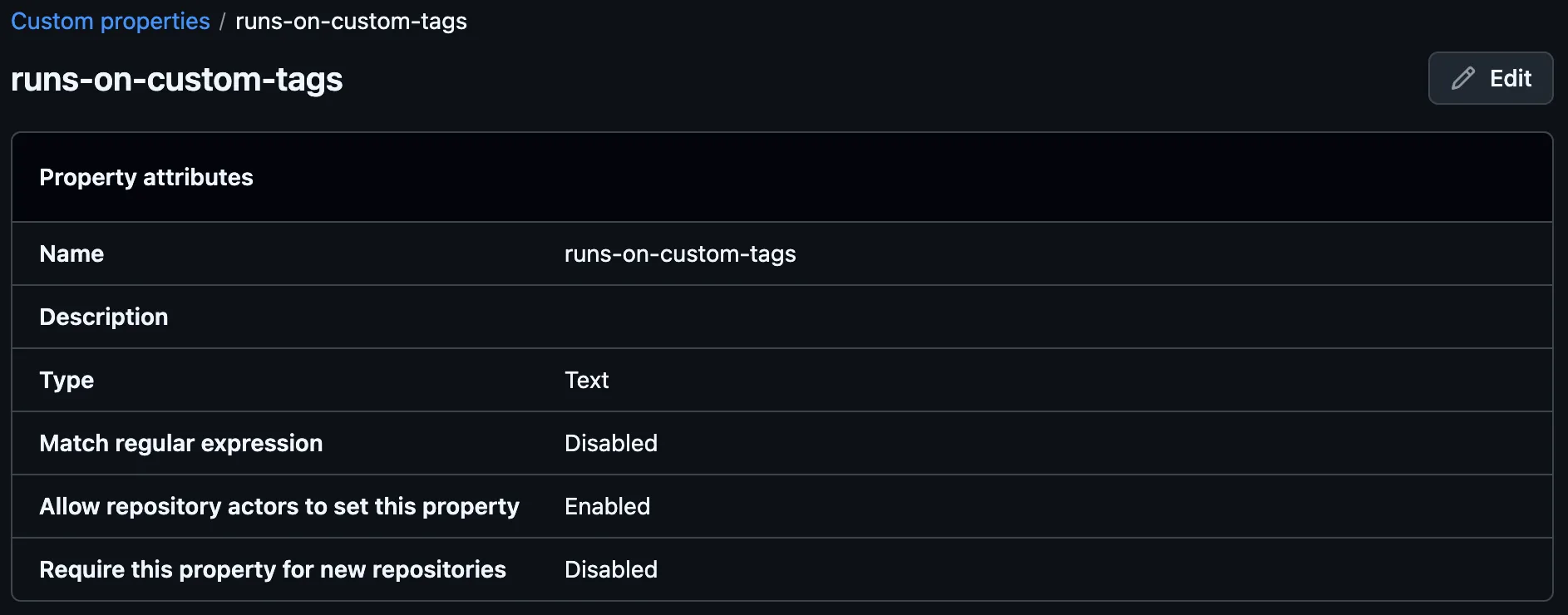
custom tags defined in a specific custom property of your GitHub repository settings. The custom property must be named
runs-on-custom-tags, and the value is a comma-separated list of tag keys and values, e.g.key1=value1,key2=value2.
- custom tags defined for a runner specification in the
runs-on.ymlfile.
If the same tag name is defined in multiple places, the last one wins. The precedence (highest priority first) is:
- Custom property (
runs-on-custom-tags) runs-on.ymlrunnertags- Stack-level
RunnerCustomTags
Cost reports in AWS Cost Explorer#
For a richer, interactive breakdown you can view RunsOn costs directly in AWS Cost Explorer ↗, filtering on your cost-allocation tag (default key stack, value: the stack name).
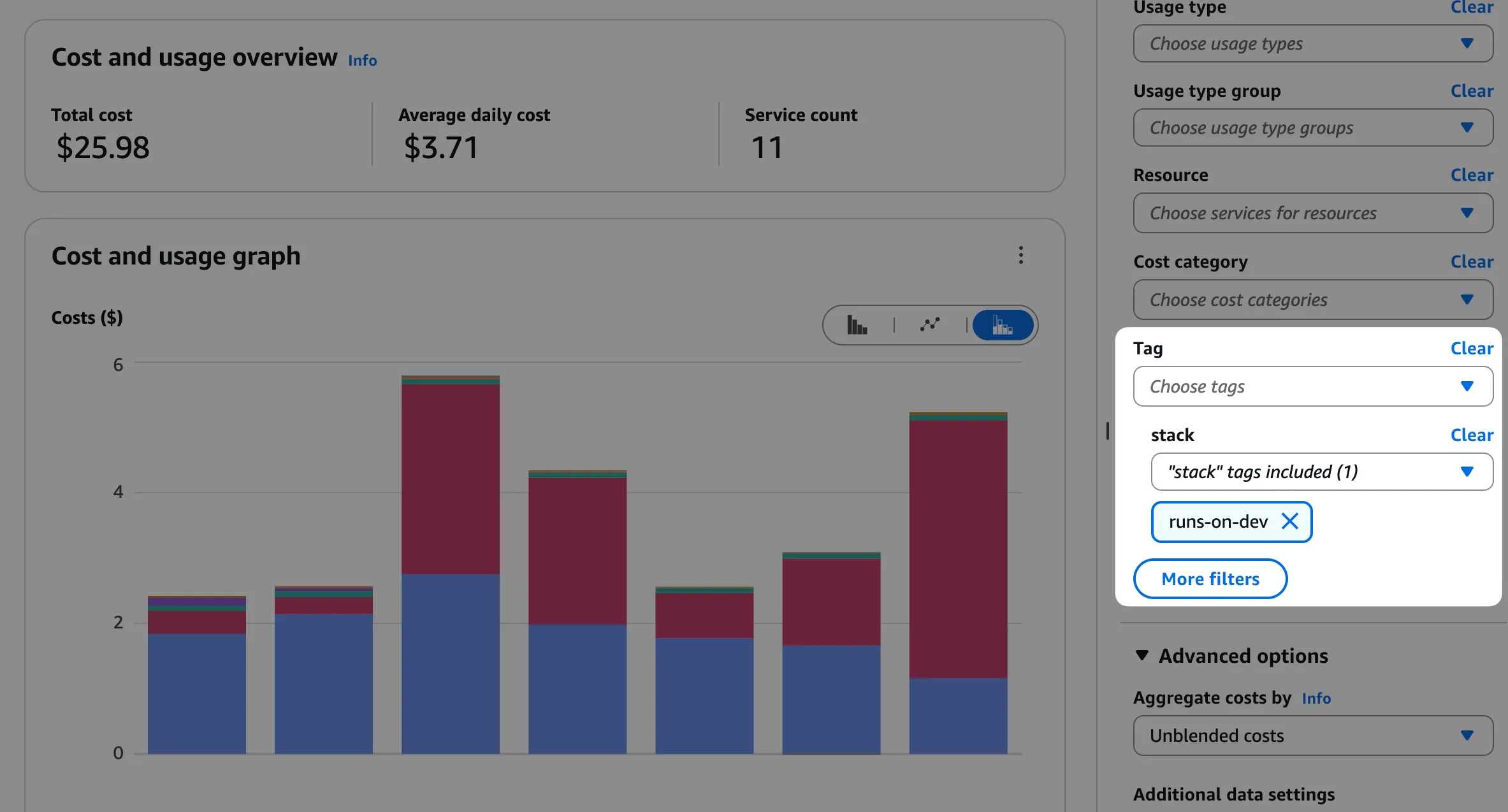
The default runs-on-* tags are standard AWS resource tags on the EC2 instances launched for your jobs. If you activate them as cost-allocation tags in AWS Billing, you can drill into where your RunsOn spend comes from. The most useful tags to activate are usually:
runs-on-repo-full-nameruns-on-workflow-nameruns-on-workflow-job-nameruns-on-stack-nameruns-on-is-private
To enable them:
- Open the AWS Billing and Cost Management console and make sure Cost Explorer is enabled.
- Go to Cost allocation tags.
- Search for the
runs-on-*tags that you want to report on, then choose Activate. - If the AWS account where RunsOn is installed is a member account in AWS Organizations, do this from the organization’s management account (the top-level billing or payer account), not from the member account itself.
- Wait up to 24 hours for the tags to become active in billing data and show up in Cost Explorer.
- In Cost Explorer, group or filter by those tags to see costs per repository, workflow, or job.
Any custom tags you add through RunsOn can be activated the same way. For the AWS side of this flow, see the official guide on user-defined cost allocation tags ↗.
AWS Config#
If you have AWS Config enabled in your AWS account, with the default settings it will record an event for every resource created in your account, including every EC2 instances created by RunsOn. Each EC2 instance will trigger at least 3 events that could quickly add up:
AWS EC2 FleetAWS EC2 Network InterfaceAWS EC2 Volume
To avoid this, you should modify your AWS Config settings to skip recording for those events, in the AWS account where RunsOn is deployed.
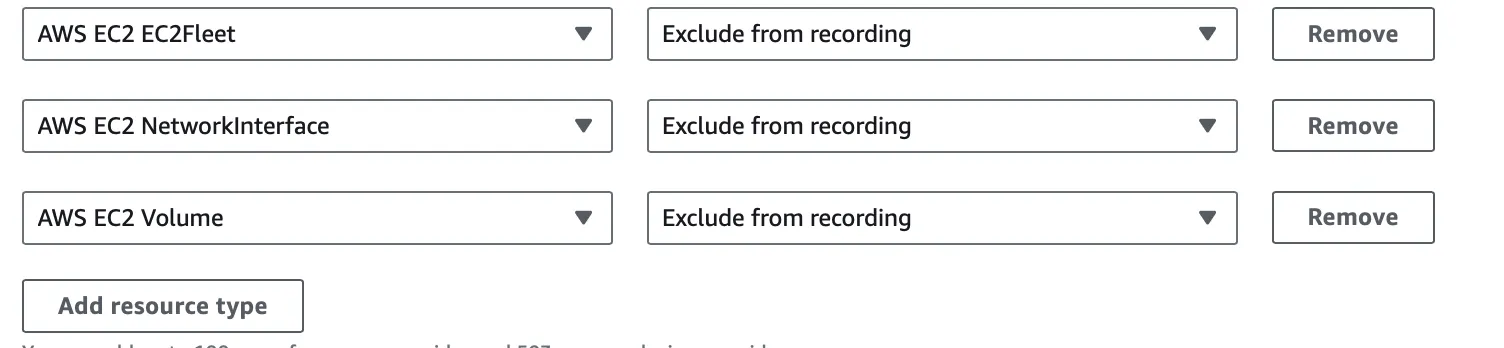
You can also skip recording AWS EC2 Instance events if you have really high usage.
Automatic termination safeguards#
To avoid dangling resources, every instance is bootstrapped with two watchdogs, in case GitHub doesn’t send the job-completion webhooks (this happens):
- the instance terminates itself after 10 minutes if no workflow job has been scheduled on it;
- the instance terminates itself after 12 hours, regardless of whether a job is still running. This ceiling is configurable via
RunnerMaxRuntime(in minutes).
On the server side, a cleanup process runs continuously and terminates any instance that hasn’t been tagged runs-on-workflow-job-started=true after 25 minutes. That tag is set by the agent once a job starts processing, so this is a last-resort safety net for instances where the agent never started — e.g. a custom AMI with cloud-init disabled, or a network issue at boot.
See Job retries and housekeeping for the full set of server-side housekeeping behaviours.