Upgrades
Upgrade RunsOn while preserving configuration — CloudFormation stack updates for Flex, Terraform module upgrades for Fleet, plus how to downgrade.
Whenever a new version of RunsOn is available, you upgrade in place while preserving your existing configuration. The procedure depends on how RunsOn is deployed: Flex upgrades are CloudFormation stack updates, while Fleet upgrades are Terraform module changes.
For Flex, upgrading means updating your current stack with the latest version of the CloudFormation template.
This procedure is also valid if you simply want to update one of the stack parameters, for instance to update the LicenseKey parameter once you have purchased a license.
Update the CloudFormation stack#
Direct update#
-
Go to
CloudFormation > Stacks, then click on your RunsOn stack. -
Now click on the
Updatebutton, and selectReplace current template.
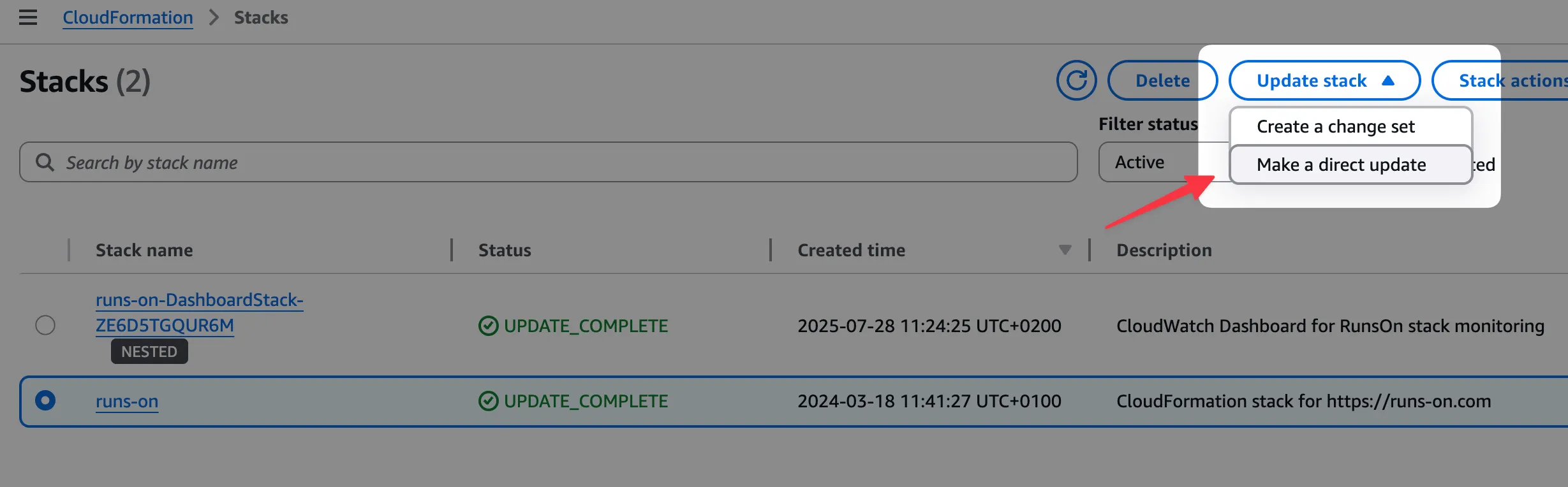
- Enter the following URL:
https://runs-on.s3.eu-west-1.amazonaws.com/cloudformation/template-v3.5.0.yaml- Then click
Next.
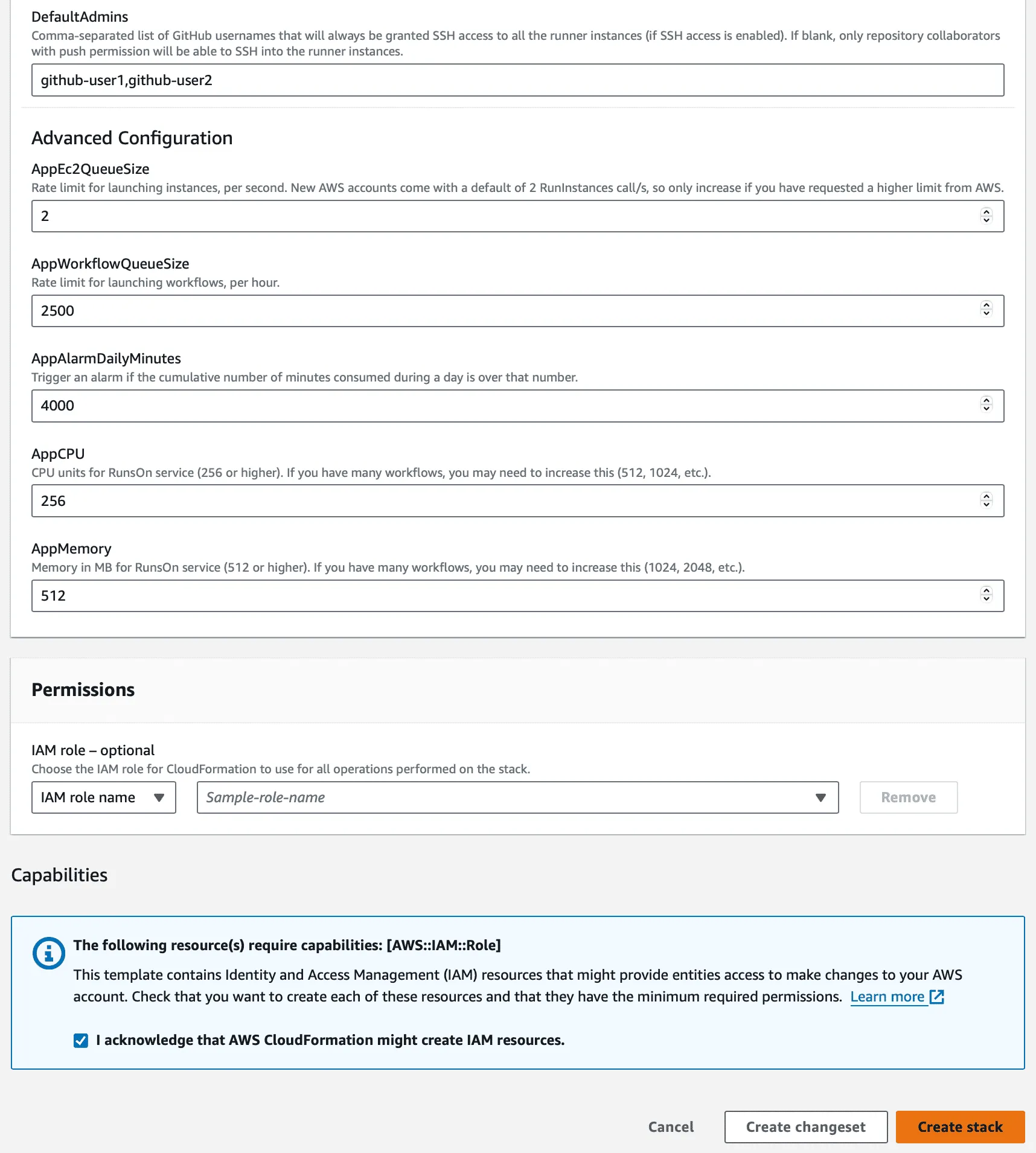
- On the next screen, ensure all required parameters are given, then click
Nextuntil you get to the recap screen. At this point, clickSubmitafter checking the permission boxes.
Using changesets to preview the changes#
Verifying the installation#
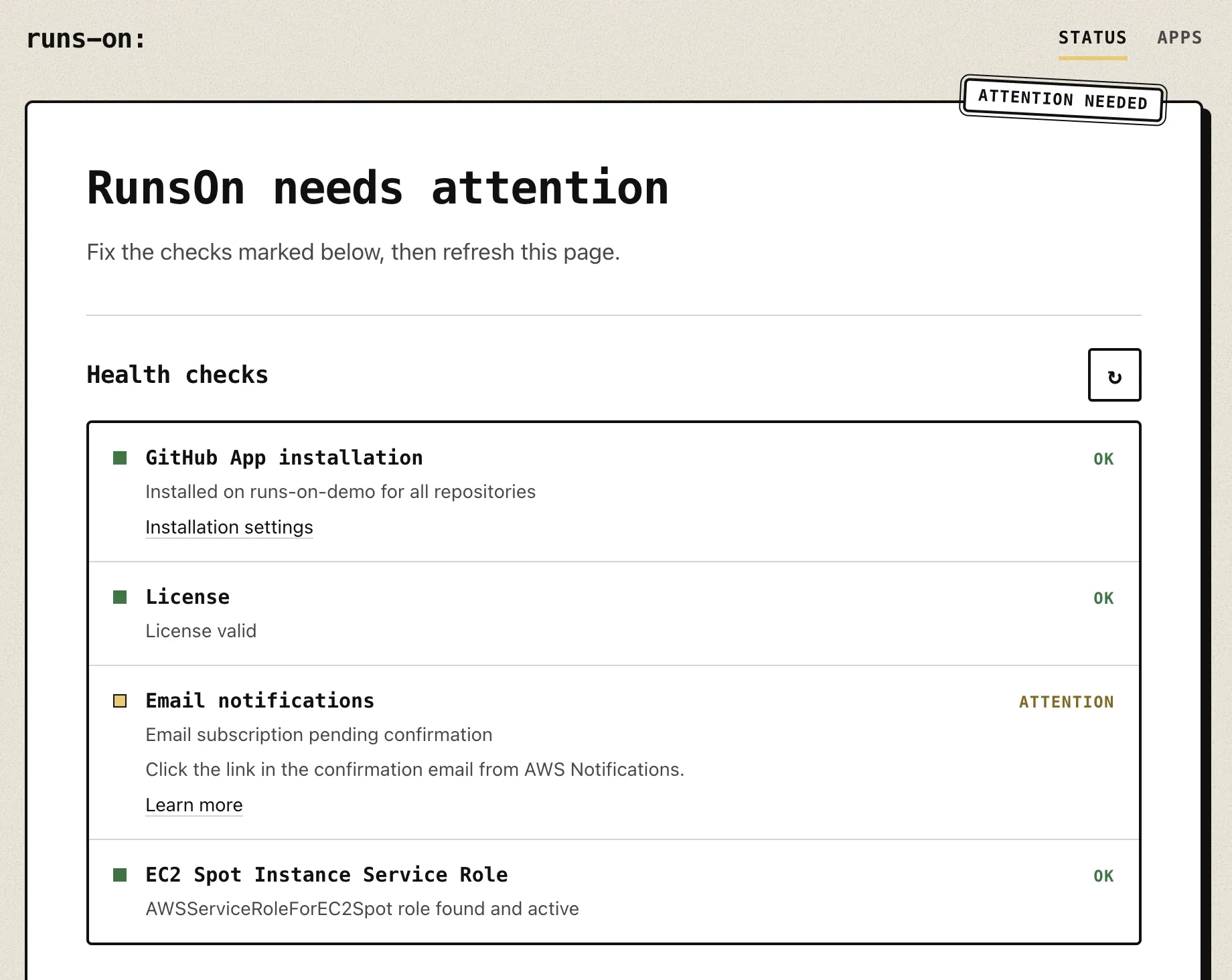
Open the RunsOn entrypoint URL from the CloudFormation stack outputs: the status page runs its health checks. Every check should be under Passing; a check under Needs action says what to fix.
Rolling back#
If for any reason you need to roll back to a previous version, you can do so by directly referencing the previous version of the CloudFormation template.
- Go to
CloudFormation > Stacks, then click on your RunsOn stack. - Click
Update. - Select
Replace current template, and enter the following URL:
https://runs-on.s3.eu-west-1.amazonaws.com/cloudformation/template-VERSION.yamlYou will find the version-specific CloudFormation template URL in the Changelog.
If you roll back to a version older than v3.4.0, select Replace current template for every later update, including parameter-only changes.
Blue-green deployment#
If you want to test a large upgrade without upgrading your current stack, you can use a blue-green deployment strategy.
- Create a new stack with the new version of the CloudFormation template (follow the installation guide, using the same license key).
- Register the GitHub App, assign the necessary repositories, and verify that you get the success screen on your new RunsOn entrypoint URL.
- Once the new stack is operational, put the old stack into maintenance mode by updating
MaintenanceModetotrue. - Trigger a few jobs, verify that they start and end up on the new stack version (you can use the
Runner detailslogs in the GitHub job output, underSet up job, to check for the correct version). - Once you are satisfied with the new version, you can then permanently delete the old stack, as well as the corresponding GitHub App.
- If the new version is not working as expected, put the new stack into maintenance mode, set the old stack’s
MaintenanceModeback tofalse, and investigate before trying again.
Fleet upgrades are Terraform changes. Keep job labels stable while you upgrade the module, runtime image, and catalog.
Upgrade the module version#
After v3.2 is published, update the module version to the exact v3.2 release tag shown on the RunsOn releases page ↗. Do not reference an unpublished tag.
module "runs_on_fleet" {  source  = "runs-on/runs-on/aws//modules/fleet"  version = "<published-v3.2-release-tag>"
  # ...}
Run terraform plan and review changes to:
- the ECS/Fargate Fleet worker service
- the rendered config secret
- IAM roles and policies
- launch templates
- cache and log resources
Preserve runner fleet contracts#
Repository workflows depend on:
runs-on: runs-on/fleet=<fleet-name>/env=<environment>Changing a fleet key or environment changes that workflow contract. Prefer adding a new runner fleet, migrating repositories, and then removing the old runner fleet.
Upgrade runner images#
Image changes are part of the catalog:
runners = { linux-build = { cpu = 4 ram = 8 family = ["c8"] image = "ubuntu24-full-x64" }}If you maintain custom AMIs, update the images lookup pattern or owner only after the new AMI is published in every AWS region where Fleet runs.
Operational rollout#
For production, use a staged rollout:
- Apply the new module version to a non-production Fleet stack.
- Run a workflow against each runner fleet.
- Confirm GitHub scale sets, runner groups, CloudWatch logs, and EC2 launches.
- Apply to production.
- Watch assigned-job demand, launches, and runner registration after the change.
Fleet is complementary to Flex during migrations. Keep specialized Flex workflows on Flex until their runner needs become stable runner fleets.
Downgrade#
Downgrading is simply an upgrade in reverse: roll the version back to an earlier release and re-apply.
Terraform / OpenTofu (Flex or Fleet)#
For any Terraform/OpenTofu-managed deployment — Flex or Fleet — pin the module version to the older release and re-apply. No special procedure is required.
module "runs_on_fleet" {  source  = "runs-on/runs-on/aws//modules/fleet"  version = "v3.0.0" # the older version you want to roll back to
  # ...}
Run terraform plan to review the changes, then terraform apply.
Flex (CloudFormation)#
Downgrading a CloudFormation-managed Flex stack is as simple as updating it with a previous template version.
The template version link can be found in the changelog for each release. It looks like this:
https://runs-on.s3.eu-west-1.amazonaws.com/cloudformation/template-VERSION.yamlOnce you have the template link, you can then follow the same steps as in the Flex upgrade procedure above. Just make sure you use the correct versioned template URL in the first step.