Troubleshooting
Diagnose RunsOn runner and stack issues across Flex and Fleet: webhook delivery, EC2 launch failures, scale-set routing, runner groups, and logs.
Runners can fail to start for a variety of reasons. Flex launches one ephemeral runner per workflow job. GitHub webhooks drive the normal path, and reconciliation recovers missed events. Fleet launches runners from GitHub runner scale-set assignments.
For Flex, first open the status page. Then use the RunsOn CLI, and jump to the section that matches your deployment — Flex troubleshooting or Fleet troubleshooting — then use the shared sections below (Viewing logs, CloudTrail events, Unexpected costs, apt and dpkg lock errors) for diagnostics that apply to both modes.
Check the Flex status page#
Open the RunsOn entrypoint URL from the stack outputs (CloudFormation RunsOnEntryPoint, or the Terraform ingress URL); it redirects to /setup/success. The page checks, in a few seconds:
- GitHub App installation: whether the app is installed on your organization, and for all or selected repositories.
- GitHub webhooks: whether GitHub still sends the app’s webhooks to this stack, and how its last 50 deliveries went. A
403usually means the WAF blocked GitHub’s addresses. - Control plane: running and desired tasks, a failed deployment, or maintenance mode (no jobs are picked up).
- Webhook event queue: events waiting, and events that failed processing.
- License, email notifications and the EC2 Spot service role.
- EC2 vCPU quotas: your Spot and On-Demand vCPU quotas for the Standard instance families (A, C, D, H, I, M, R, T, Z). GPU and other families have their own quotas, which the page does not check. The page flags a quota below 32 vCPUs. Once running runners use the whole On-Demand quota, extra jobs wait; once they use the whole Spot quota, new runners launch On-Demand instead. Request an increase in Service Quotas.
Beside the checks (above them on a phone), the page lists the stack’s version, environment (with its env= label when not production), region, app size, runner networking and deployment method. Below them, a Troubleshooting section gives roc commands to check the stack and export a job’s logs, and links to the CloudWatch dashboard and logs, the ECS service, the SQS queues, the CloudFormation stack (CloudFormation installs), Service Quotas, the app’s recent webhook deliveries and the org’s Actions settings.
The page is public while EnableAdminRoutes (CloudFormation) or enable_admin_routes (Terraform) is on, which is the default. Anyone with the URL sees the stack details above, your GitHub organization name, the stack and resource names in the Troubleshooting commands and links, and each check’s status and counts. It never shows repository names, job details, webhook payloads or the AWS account ID. With admin routes off, the stack has no status page. roc stack doctor still checks the ECS service and exports the logs, but its endpoint and readiness checks fail, because those routes are off too.
Start with the RunsOn CLI#
Install the RunsOn CLI (roc) and check its AWS credential requirements.
Collect a diagnostic archive#
For v3 and later, RunsOn provides a CLI --full mode to export a complete diagnostic archive for a GitHub job:
AWS_PROFILE=your-aws-profile roc logs https://github.com/YOUR_ORG/YOUR_REPO/actions/runs/RUN_ID/job/JOB_ID --fullThis writes a roc-logs-<job_id>-<timestamp>.zip archive with the resolver response, local job or Fleet claim details, control-plane logs for the job and run, CloudTrail events for attempted instances, EC2 console output, agent logs, and each instance’s metrics.jsonl when available. The resolver exposes only an allowlisted stack-settings summary, but the archive can still contain sensitive data in records and logs. Review it before sharing.
Stream logs#
For live streaming, omit --full:
AWS_PROFILE=your-aws-profile roc logs https://github.com/YOUR_ORG/YOUR_REPO/actions/runs/RUN_ID/job/JOB_ID --watchQuick checks#
- Check GitHub Status ↗ for GitHub Actions incidents.
- Upgrade to the latest RunsOn release.
Flex troubleshooting#
Flex sends runner launch errors to the email subscribed to the stack’s SNS topic. Confirm the SNS subscription after creating the stack, or AWS will not deliver these alerts.
Common Flex symptoms#
CloudFormation stack fails while creating RunsOnWorkerCluster#
If the CloudFormation stack fails on RunsOnWorkerCluster with the following error, the failure happens before RunsOn starts:
Unable to assume the service linked role. Please verify that the ECS service linked role exists.RunsOnWorkerCluster is the ECS/Fargate cluster used by the RunsOn control plane. AWS needs the account-level ECS service-linked role, AWSServiceRoleForECS, before it can create or use that cluster.
This can happen in fresh AWS Control Tower or multi-account environments when the member account does not have the ECS service-linked role yet, or when an SCP or permission boundary blocks ECS from creating or assuming it.
First check whether the role exists in the target AWS account:
aws iam get-role --role-name AWSServiceRoleForECSIf the role is missing, create it once:
aws iam create-service-linked-role --aws-service-name ecs.amazonaws.comIf that command is denied, grant the deploying principal iam:CreateServiceLinkedRole and ensure that no SCP or permissions boundary blocks it. This policy statement limits creation to the ECS service-linked role:
{ "Effect": "Allow", "Action": "iam:CreateServiceLinkedRole", "Resource": "*", "Condition": { "StringEquals": { "iam:AWSServiceName": "ecs.amazonaws.com" } }}After IAM propagation completes, retry the stack operation. If CloudFormation rolled the stack back to a terminal state, delete the failed stack and create it again.
Jobs stay queued or start slowly#
Default Linux runners usually start in about 30 seconds. If queue time is much longer, check the following causes.
Webhooks not getting delivered#
The workflow_job webhook is Flex’s fast path. When a delivery is missed, Flex finds the job by listing queued and in-progress workflow runs from GitHub:
- Up to 50 repositories that ran RunsOn jobs in the last hour, most recently active first, are checked every 5 minutes, so a missed delivery there usually adds a few minutes of queue time. Flex keeps this list in memory, so a restart empties it. A repository rejoins on its next webhook.
- Other repositories are checked in a slower rotation that skips archived repositories. When the GitHub App can access hundreds of repositories, a pass can take hours. Limiting the App’s repository access to the repositories that use RunsOn shortens it.
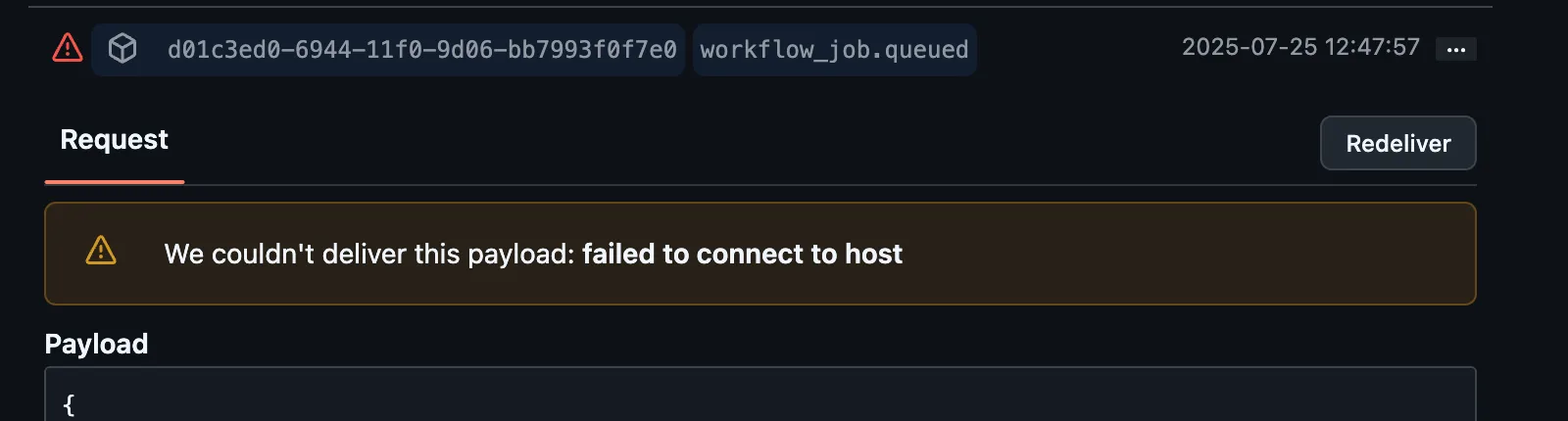
Open your RunsOn GitHub App settings, select Advanced, and inspect Recent deliveries.
Any 2xx response means the ingress accepted the delivery. For a non-2xx response, open the delivery, inspect the response, and choose Redeliver. Contact support if redelivery continues to fail.
Runner stealing#
GitHub can assign a runner launched for one job to another job with the same labels. For example, if jobs A and B request the same label, the runner launched for A can claim B while A waits for the runner launched for B.
Give each concurrently queued job a unique label by combining the workflow run ID with the job name.
Make sure you are using the single-string syntax available since v2.5.4, so GitHub treats the full RunsOn specification as one label:
jobs:  my-build-job:    runs-on: "runs-on=${{ github.run_id }}-my-build-job/runner=2cpu-linux-x64"
  my-release-job:    runs-on: "runs-on=${{ github.run_id }}-my-release-job/runner=2cpu-linux-x64"
When a job loses its runner this way, Flex launches a replacement. If the job that took the runner had no runner of its own, for example because its launch failed or its webhook never arrived, the replacement starts as soon as GitHub reports that job started. Otherwise Flex first gives that job’s own runner time to pick up the waiting job: at least two minutes, longer for slow-booting images such as Windows. Unique labels avoid the wait.
If the problem persists, confirm that the repository is included in the RunsOn GitHub App installation, then repeat the webhook delivery check.
If you need more help, please contact support.
Runner stealing and matrix jobs#
github.run_id is shared by every matrix entry in a workflow run. GitHub does not expose a unique matrix-entry ID that can be used in runs-on, so append the strategy job index ↗ or a unique matrix value. Include the job name when the workflow has more than one matrix job. The run attempt number ↗ distinguishes reruns:
jobs: my-build-job: strategy: matrix: node: [16, 18, 20] runs-on: "runs-on=${{ github.run_id }}-my-build-job-${{ github.run_attempt }}-${{ strategy.job-index }}/runner=2cpu-linux-x64"Failed to create instance#
The AWS error identifies the most common causes.
PendingVerification#
⚠️ Failed to create instance with type c8a.4xlarge: PendingVerification: Your request for accessing resources in this region is being validated, and you will not be able to launch additional resources in this region until the validation is complete. We will notify you by email once your request has been validated. While normally resolved within minutes, please allow up to 4 hours for this process to complete. If the issue still persists, then open a support case. [https://support.console.aws.amazon.com/support/home?region=us-east-1#/case/create?issueType=customer-service&serviceCode=account-management&categoryCode=account-verification]AWS usually completes verification within a few minutes, but it can take up to four hours. If it still fails after that, open an AWS Support case.
RequestLimitExceeded#
AWS returns RequestLimitExceeded when the account exceeds an EC2 API request quota. Other stacks and tools in the account share that quota.
See Amazon EC2 API throttling ↗ for details.
The small preset applies the lowest launch concurrency. It currently uses four provisioning workers and a four-token-per-second EC2 launch limiter.
If your account has a higher quota for those API calls, you can use a larger AppSize preset. Larger presets increase worker concurrency and assume you have raised the relevant EC2 quotas.
Fleet troubleshooting#
Fleet troubleshooting starts with GitHub routing. A healthy AWS stack can still show no runner launches if GitHub is not assigning jobs to the scale set. Before looking at EC2, verify that GitHub assigned the job to the Fleet scale set.
Use this order:
- Confirm the workflow label and runner group route the job to the scale set.
- Confirm the Fleet worker sees assigned demand.
- Confirm EC2 can launch or pick up capacity for the runner fleet.
- Confirm the runner registers and receives the job.
Check maximum capacity first#
max_runners is the runner fleet’s sustained concurrency ceiling. Fleet sends it to GitHub as the scale-set maximum and also enforces it locally. It defaults to 1000; setting it to 0 drains a fleet without deleting its configuration.
Do not confuse it with max_launch_batch_size. That setting only limits how quickly Fleet approaches the configured ceiling. If assigned demand is above max_runners, GitHub keeps the excess work queued by design.
Check the workflow label#
The workflow label must match the fleet name and environment:
runs-on: runs-on/fleet=linux-small/env=productionConfirm:
linux-smallexists in the Terraformfleetsmap.- The label environment matches the module-level
environment. - The repository has access to the runner group that contains the scale set.
Fleet has one routing environment per stack. Fleet entries cannot override env, so a workflow using env=staging will not match a stack deployed with environment = "production".
Check runner groups#
In organization mode, the runner group is an organization runner group. In enterprise mode, it is an enterprise runner group.
Fleet looks up the group by name. If runner_group is set to a group that does not exist or does not grant access to the repository, jobs will not route to the runner fleet.
Multiple fleets can share one runner group. Use separate groups only when the GitHub access policy must differ.
Check the GitHub scale set#
Fleet normally names the scale set runs-on-<stack>-<fleet>. It removes a leading runs-on- from each component, so stack runs-on-fleet and fleet linux-small produce runs-on-fleet-linux-small. Names longer than 63 characters are shortened with a hash suffix.
If the scale set is missing, check Fleet startup logs and GitHub credentials:
- organization mode needs one active GitHub App installation with organization self-hosted runner write access
- enterprise mode needs
github_enterprise_patandgithub_enterprise_name; the classic PAT needsmanage_runners:enterprise - set
github_base_urlto the GitHub host root; Fleet also normalizes a terminal GHES/api/v3path
If the scale set exists but jobs remain queued, the most likely causes are a label mismatch, runner-group access, enterprise organization access, or GitHub workflow restrictions.
Check the Fleet worker logs#
The Terraform module creates a CloudWatch log group for the Fleet runtime service. Look for log fields such as:
fleet_namefleet_scoperunner_groupworkflow_labelgithub_assigned_jobsandeffective_assigned_jobsclaims_active,committed_claims, andpending_launch_claims
For a slow burst, filter for Fleet capacity plan evaluated. Compare
cold_launch_deficit, launch_batch_limit, and planned_launch_count. If the
planned count repeatedly equals the batch limit while the cold deficit remains
higher, the target is batch-limited. Check launch_backoff and the requested,
fulfilled, and unfulfilled counts in Completed fleet launch batch before
raising the limit; backoff or unfulfilled capacity points to EC2 pressure
instead. See Fleet burst launches
for the full tuning sequence.
The generic reconciler_backlog, queued_awaiting_launch_by_reason, and
provisioning_backlog operator-snapshot fields describe Flex queues and remain
empty or zero in Fleet. Use fleet_desired_runners and
fleet_claims.<fleet>.active, .provisioning, .committed, and .delayed for
Fleet capacity state.
If logs show the target as ready but assigned demand stays at zero, the issue is usually GitHub routing: label mismatch, runner group access, enterprise organization access, or workflow restrictions.
If assigned demand is non-zero but no runner launches, check EC2 capacity and runner fleet configuration:
- EC2 service quotas for the selected instance family
- spot or on-demand availability for the family and Availability Zones
- image lookup results for the configured
image - subnet routing and security groups
- runner IAM permissions and permission boundaries
max_launch_batch_sizeif large bursts are only launching in small wavesmax_runnersif demand plateaus at an intentional concurrency ceiling
Check hot and stopped pools#
If a runner fleet uses schedule.hot or schedule.stopped, separate standby inventory issues from GitHub routing issues.
If standby instances are not present:
- confirm the schedule matches the current time in the runner fleet’s
timezone - confirm the active schedule has non-zero
hotorstopped - check EC2 on-demand quota and available subnet IP addresses
- check Fleet worker logs for the target
fleet_name
If standby instances exist but jobs still launch cold:
- confirm the workflow targets the same fleet key and
environment - confirm the standby instances belong to the same stack and runner fleet
- check whether all ready hot or stopped instances were already consumed by earlier assigned jobs
- after changing runner image, family, networking, or IAM, allow Fleet to replace stale standby inventory
Fleet uses ready hot instances first, then ready stopped instances, then cold CreateFleet overflow.
Matrix jobs and max-parallel#
Fleet can work with GitHub strategy.max-parallel because GitHub assigns jobs to the runner scale set as they become eligible to run. Use this when a large matrix should intentionally limit concurrent runner demand:
strategy: max-parallel: 4 matrix: shard: [1, 2, 3, 4, 5, 6, 7, 8]If a matrix appears slower than expected, check whether max-parallel is intentionally limiting the number of assigned jobs before tuning Fleet capacity.
Recovering from Spot interruptions#
Fleet has the same Spot circuit-breaker contract as Flex. spot_circuit_breaker = "2/15/30" is the default: two interruption notices in 15 minutes send new launches to on-demand capacity for 30 minutes. Set it to false only when you explicitly want to disable that protection.
When the instance that actually ran a job is interrupted and workflow attempt 1 or 2 finishes with the failure conclusion, Fleet can rerun failed jobs after snoozing Spot launches for that target. Attempt 3 is terminal. GitHub may still assign a matching Spot runner that already exists. In GitHub App mode, recovery needs Actions: read and write. In enterprise PAT mode, add the repo scope to manage_runners:enterprise. Set runners.<name>.retry: false to stop Fleet from initiating that recovery; it does not stop a person or another system from rerunning the workflow, and it does not stop circuit-breaker tracking.
Use the SigNoz dashboard to check circuit-breaker state, desired runners, claims, and Spot interruptions. The built-in Fleet CloudWatch dashboard shows desired runners, claims, and recent incidents. For one affected job, run roc logs "$JOB_URL" --full to collect its claim and attempted-instance history.
Runners launch but do not register#
When EC2 instances launch but GitHub jobs keep waiting, inspect the runner logs:
- CloudWatch Logs for the EC2 runner log group (see Instance cloud-init logs)
- EC2 console output for cloud-init or bootstrap failures (see Instance console logs)
- subnet egress to GitHub, S3, ECR, and any package registries used by the image
- Secrets Manager and S3 access from the runner instance role
Once Fleet has selected capacity, the same lower-level AWS checks apply as in Flex: EC2 quota, AMI lookup, subnet reachability, IAM permissions, instance bootstrap, and CloudWatch logs. The Fleet-specific difference is the first step — GitHub must assign demand to the scale set before Fleet launches or picks up a runner.
Common Fleet symptoms#
| Symptom | Likely cause |
|---|---|
No EC2 runners launch and github_assigned_jobs is 0 | Label mismatch or runner-group access. |
github_assigned_jobs is nonzero but no runners launch | EC2 quota or capacity, image lookup, networking, IAM, or launch backoff. |
| Fleet startup fails in organization mode | The GitHub App has zero or multiple active installations. Keep one installation for the runtime. |
| Enterprise runner fleet exists but org jobs do not route | The enterprise runner group does not grant access to that organization or workflow. |
| Runners launch but jobs stay queued | Runner bootstrap or registration failed. Check runner CloudWatch logs, console output, egress, and Secrets Manager/S3 access. |
| Hot or stopped pool is ignored | Schedule mismatch, stale standby inventory, or all ready standby instances were already consumed. |
| Large bursts launch slowly | Review app_size, EC2 quotas, max_launch_batch_size, launch_backoff, and runner family availability. |
| Demand stops rising at a round number | Check the runner fleet’s max_runners; 0 intentionally drains the fleet. |
| An interrupted attempt 1 or 2 was not rerun | Check runners.<name>.retry, the credential permissions for your mode, whether the workflow concluded with failure, and whether the interrupted instance had actually started the job. |
Find run_id and job_id#
Open the job log in GitHub and copy both IDs from its URL:
https://github.com/YOUR_ORG/YOUR_REPO/actions/runs/12054210358/job/33611707460Here, run_id is 12054210358 and job_id is 33611707460.
Viewing logs#
Application logs#
Application logs for the RunsOn control plane are available in CloudWatch. The log group name is exposed by the CloudFormation RunsOnServiceLogGroupName output.
Use the RunsOn CLI above, or inspect application logs with the tools below:
Use the CloudWatch console or the awslogs command to inspect control-plane logs:
pip install awslogsReplace the log group below with the RunsOnServiceLogGroupName stack output:
AWS_PROFILE=your-aws-profile awslogs get --aws-region eu-west-1 \ YOUR_RUNS_ON_SERVICE_LOG_GROUP_NAME \ -wGS -s 30m --timestampIn the AWS console, filter the log group by workflow run ID:
Current v3 CloudFormation installs retain control-plane application logs for 30 days. Terraform/OpenTofu installs follow log_retention_days (7 days by default), with a 14-day minimum for Flex; set it to match your policy.
Instance cloud-init logs#
Official images publish bootstrap logs, including the cloud-init boot process, to the EC2 instance log group in CloudWatch.
If runner OTEL is enabled for a job, RunsOn can also forward the bootstrap output.log file to your OTLP backend. See OpenTelemetry.
Use the RunsOn CLI to view the control-plane and instance logs for a job:
roc logs https://github.com/owner/repo/actions/runs/123/job/456Open CloudWatch > Log groups > <STACK_NAME>-runs-on-EC2InstanceLogGroup-<RANDOM_ID>.
Each instance writes to an <INSTANCE_ID>/agent stream. Filter by instance ID to find its bootstrap and agent logs.
Jobs with extras=diagnostics also write the GitHub runner’s diagnostic logs to an <INSTANCE_ID>/runner-diag stream, and to the runner’s local telemetry capture that roc logs JOB_URL --full adds to its archive. When a runner prints Listening for Jobs but the job starts much later, these logs show whether the job message was late or the runner was retrying a connection or a token request.
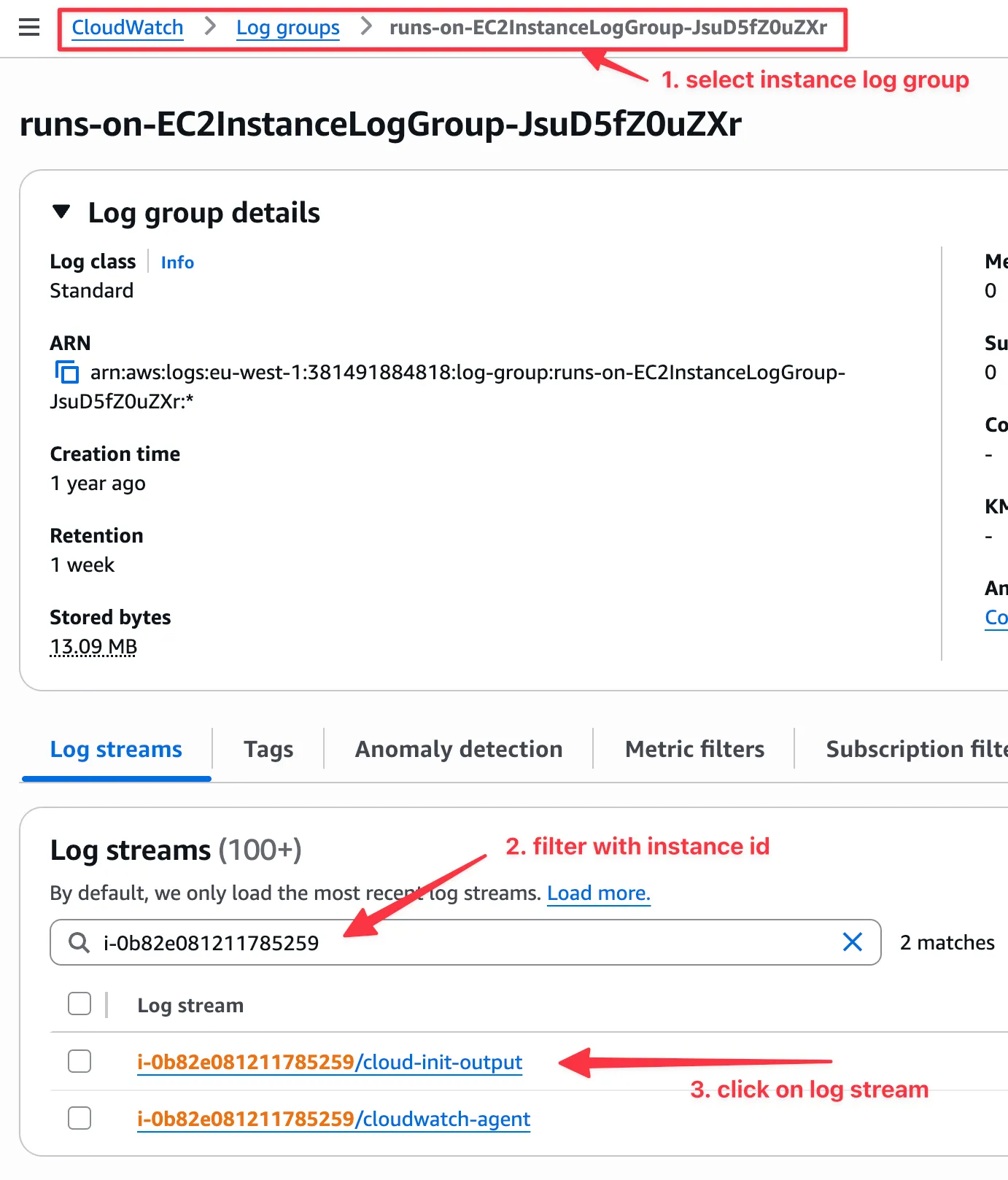
CloudFormation installs retain instance logs for 7 days. Terraform/OpenTofu installs default to 7 days unless you change log_retention_days.
Each instance keeps its full log in /runs-on/output.log: the cloud-init boot output, the bootstrap script, the RunsOn agent, the GitHub runner, and the local OpenTelemetry collector. This is the file RunsOn ships to the <INSTANCE_ID>/agent stream.
Connect with roc connect or SSH, then run the ddd helper to print the file, or ddd -f to follow it:
ddd -fTo keep a Flex instance running while you inspect it, add the debug=true label to the job. A workflow step can also print the file with cat /runs-on/output.log.
On Windows runners, the file is C:\runs-on\output.log, and ddd is not available.
Instance console logs#
On Linux runners, the console shows the boot logs, which helps when an instance never shipped its logs. Since v3.5.0, once the host is set up, it only shows the agent’s warnings and errors, and if the agent logs faster than the console can print, the console skips lines once 1,024 are waiting and prints how many it skipped. Every line stays in /runs-on/output.log and the instance’s CloudWatch stream.
You can use the RunsOn CLI to view the EC2 instance console logs:
roc logs https://github.com/owner/repo/actions/runs/123/job/456 --include=consoleYou can also retrieve console logs through the AWS console. In EC2, select the instance, then choose Actions > Monitor and troubleshoot > Get system log:
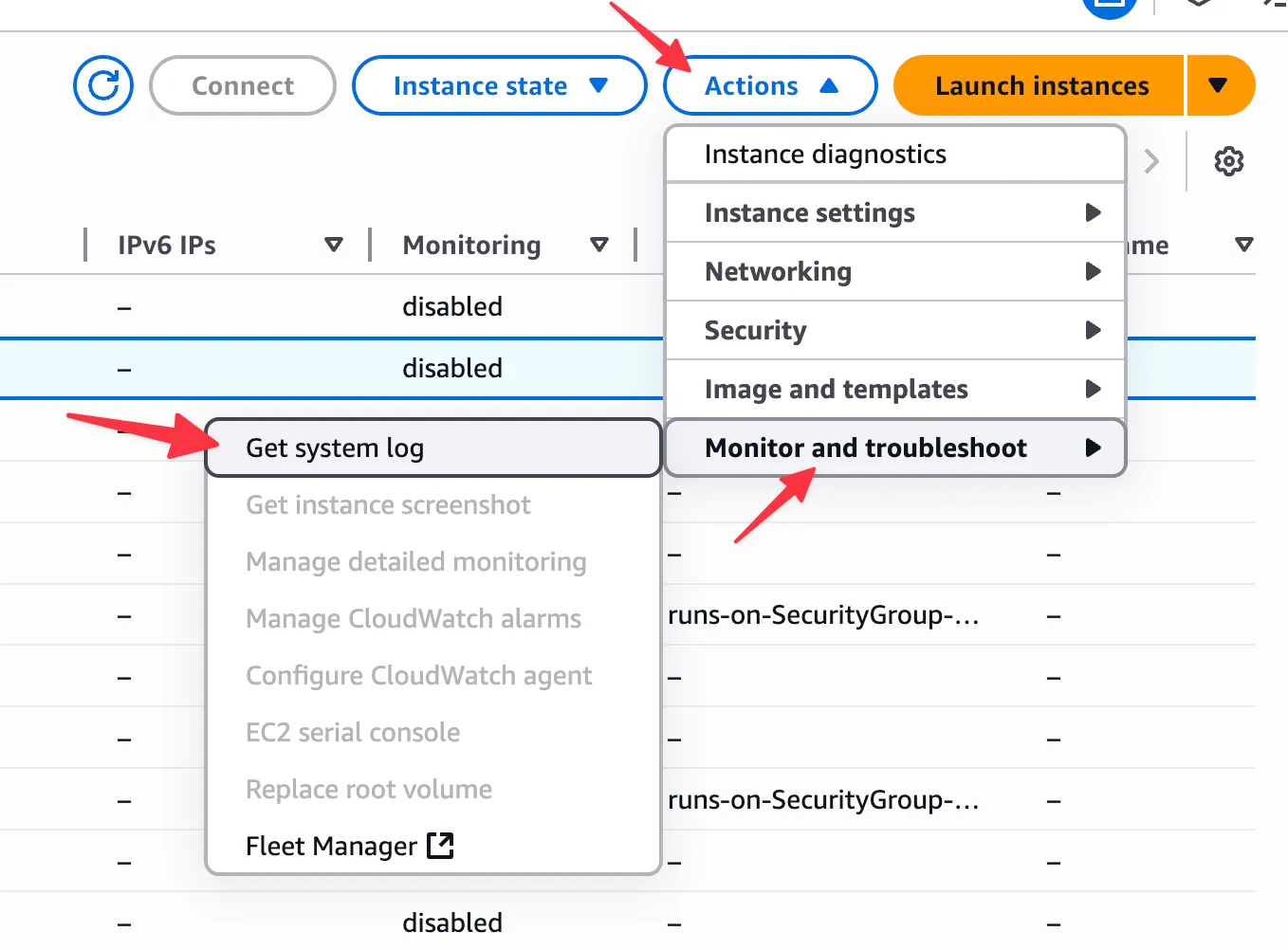
System logs may take a few minutes to appear after an instance starts.
CloudTrail events#
If you see request-limit or quota errors, inspect CloudTrail for CreateFleet and other launch-related events with throttling errors.
For example, open CloudTrail event history in eu-west-1 at:
https://eu-west-1.console.aws.amazon.com/cloudtrailv2/home?region=eu-west-1#/events?ReadOnly=falseCreateFleet denied by an Organizations SCP#
RunsOn does not require AWS Organizations or a specific Organizations feature mode. Member accounts with service control policies (SCPs) are supported, but the effective policies must permit runner launch actions.
If CloudTrail reports an explicit SCP deny for ec2:CreateFleet, an Organizations administrator must remove or narrow that deny. An IAM allow in the member account cannot override it. Ensure the SCP permits the actions granted to RunsOnServiceRole in the CloudFormation template ↗.
The stack can reach CREATE_COMPLETE because installation does not call CreateFleet. After the SCP changes, retry the job; you do not need to reinstall RunsOn.
Confirm a Spot interruption#
Run roc logs JOB_URL --full and inspect the resolver’s Spot-interruption evidence first. You can also look for a CloudTrail BidEvictedEvent as supporting evidence.
Unexpected costs#
AWS Config#
With default settings, AWS Config records an event for every ephemeral EC2 resource RunsOn creates (Fleet, Network Interface, Volume), which can add up quickly. See Cost control › AWS Config for the fix.
Datadog#
From one of our users ↗:
We ran into a big spike in registered Datadog Infra Hosts after switching to RunsOn because Datadog’s automatic AWS integration was picking up the new instances. And of course, since this is Datadog, more hosts means a lot more money. https://docs.datadoghq.com/account_management/billing/aws/#aws-resource-exclusion ↗ gives an easy approach to ignoring these hosts, I’m just doing
EC2: !provider:runs-on.comand that seems to be working.
apt and dpkg lock errors#
If a workflow job reports an apt or dpkg lock error:
E: Could not get lock /var/lib/apt/lists/lock. It is held by process 1166 (python)E: Unable to lock directory /var/lib/apt/lists/or:
Run sudo apt-get update -qq && sudo apt-get install build-essential -yE: Could not get lock /var/lib/dpkg/lock-frontend. It is held by process 1674 (dpkg)E: Unable to acquire the dpkg frontend lock (/var/lib/dpkg/lock-frontend), is another process using it?Error: Process completed with exit code 100.One common cause on a newly started runner is an SSM Agent update running in the background while the job runs apt. Unattended upgrades or another workflow process can also hold the lock.
If you followed the recommended RunsOn setup and use a dedicated AWS account for RunsOn, disabling SSM Agent auto-updates is usually the right fix. RunsOn instances are short-lived, so letting AWS update SSM Agent in the background adds little value and can break package installation during job startup.
To fix this, disable SSM Agent auto-updates in your AWS account:
- Go to the AWS Systems Manager console ↗.
- Navigate to Fleet Manager > Settings.
- Under Agent auto update, choose Delete to remove the State Manager association that automatically updates SSM Agent on your managed nodes.
See the AWS documentation ↗ for more details.
If you cannot disable auto-updates, either:
- Adding a retry with backoff to your
apt installcommands. - Pre-installing the required packages in a custom image.
Contact support#
If the issue persists, email ops@runs-on.com. Include the GitHub job URL and, when possible, attach the archive from roc logs JOB_URL --full after reviewing it for sensitive data. Otherwise, include:
- RunsOn version.
- Stack name and deployment method.
- AWS region.
- Any error messages you see in the GitHub UI, email notifications, or CloudWatch logs.
- CloudWatch logs for the RunsOn control plane (you can filter on the
run_idorjob_id— see Findrun_idandjob_id), and instance logs if you have them. - Details about the workflows in error, especially the
runs-onlabels, number of jobs in the workflow, and any use of matrix jobs.