Warm pools
Learn how to use runner warm pools to get <10s queuing time for your GitHub Actions workflows on self-hosted runners.
Runner pools keep pre-provisioned runners ready to pick up jobs, reducing queue times for short jobs and workloads with slow startup.
- Flex defines pools in
.github-private/.github/runs-on.yml, and workflows select them withpool=…. See Flex below. - Fleet defines warm capacity in Terraform, and workflows continue to target their existing
fleet=…label. See Fleet below.
When to use pools#
Start with cold launches and add a pool when startup latency is a problem for a specific workload. For Fleet:
- Linux runner fleets: usually skip. Fleet’s cold launch path on Linux x64 or ARM64 is fast enough that adding a pool rarely moves the needle. Save the idle spend.
- Heavily used Linux runner fleets: a small hot pool can help. If a
linux-small-style runner fleet is hit continuously through the workday and the first few seconds of cold launch are visible,hot = 1orhot = 2smooths the experience without much waste, because the standby capacity is picked up frequently. - Windows runner fleets: stopped pools earn their keep. Windows boot plus AMI hydration is the slowest part of a fresh runner. A stopped pool pre-pays that one-time disk warmup so the only cost at assignment is starting an already-warmed instance.
- GPU runner fleets: stopped pools earn their keep too. GPU AMIs are large and driver init is slow on cold boot. A stopped pool pays the EBS storage cost in exchange for skipping the slow first-boot path.
If a runner fleet does not fit one of the patterns above, leave hot = 0 and stopped = 0. Cold launches have no idle capacity cost; you pay for the instances while they run.
Pools are available for both Linux and Windows runners. Other reasons to use a pool include:
- you are preinstalling a lot of dependencies in your runners with the
preinstallfeature, and you want that process to be done during the warm-up phase so that you get much better pick-up times for your jobs. - you need just-in-time setup right before the job starts, such as refreshing a
docker logintoken with theprerunattribute on a custom runner or image.
How warm pools work#
Pool types#
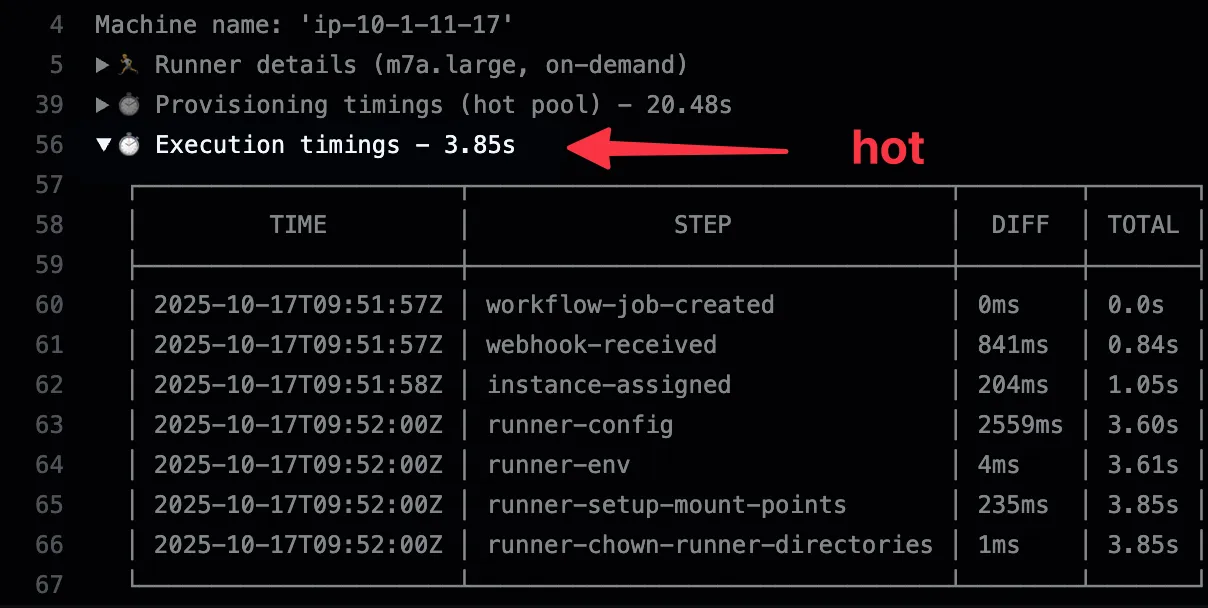
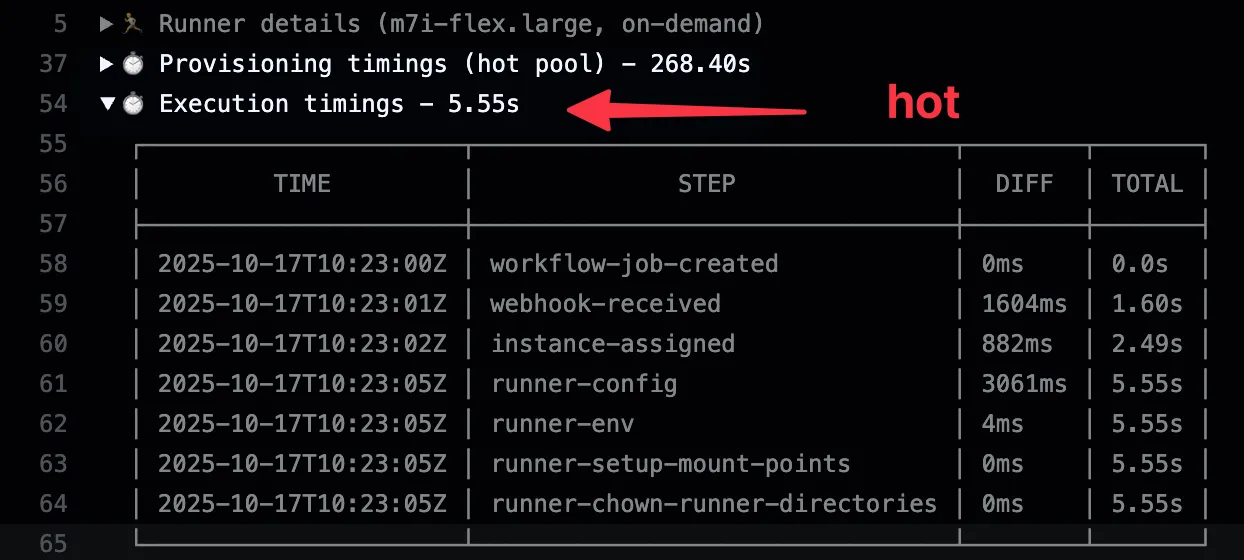
Hot instances stay running and ready to accept jobs immediately. They provide the fastest response times but incur EC2 compute costs.
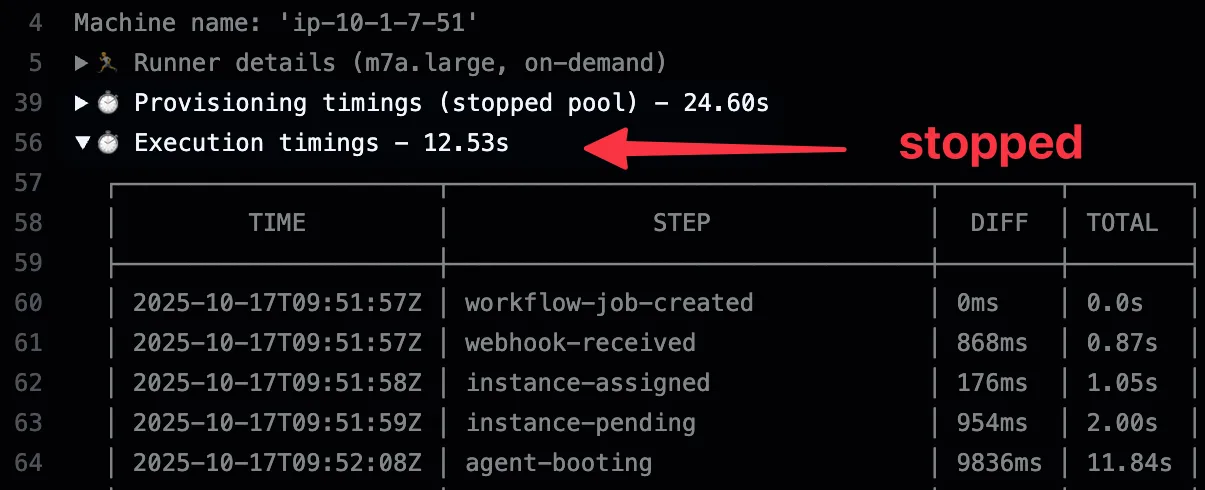
Stopped instances are pre-provisioned, warmed up, and then stopped to minimize costs. When a job arrives, they start quickly (EBS volume is already warmed, dependencies installed). You only pay for EBS storage while stopped, making them a good balance between cost and performance.
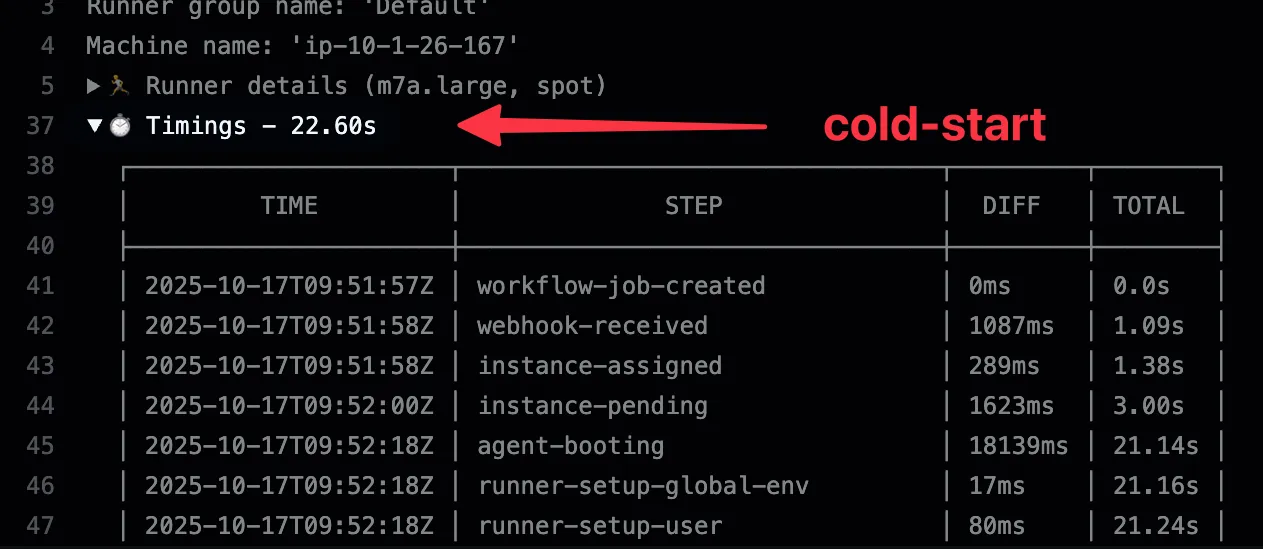
Job arrives → Ready pool capacity? → Pick from pool (fast) → No capacity? → Cold-start instance (fallback)Expected queue times#
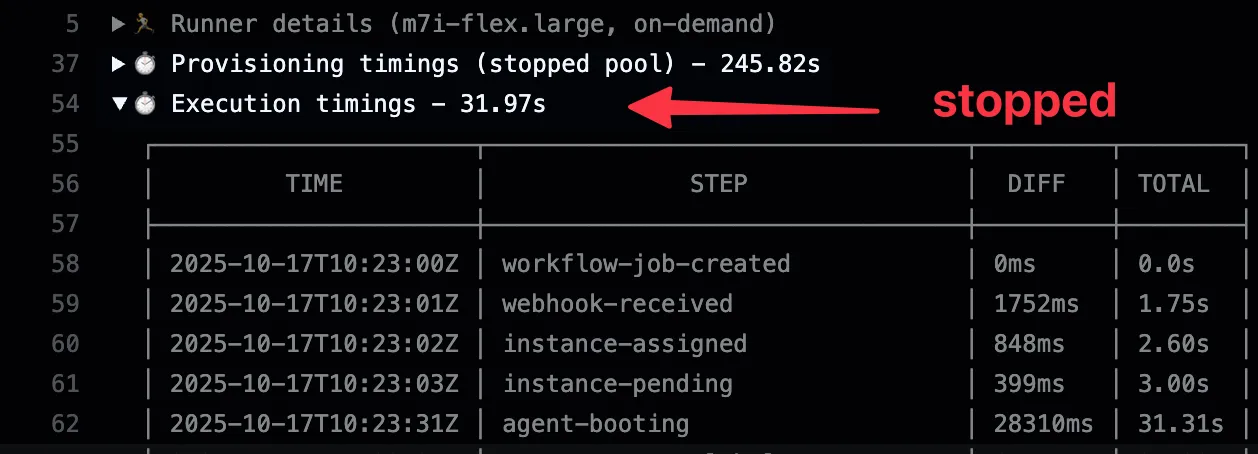
The following Flex examples show queue times for cold, stopped, and hot instances.
For Linux runners (m7a-type instances):
| Instance Type | Queue Time | Use Case |
|---|---|---|
| Cold-start | < 25s | Default behavior, most cost-efficient |
| Stopped | < 15s | Pre-warmed EBS, balanced cost/performance |
| Hot | < 6s | Always running, fastest response time |
For Windows runners:
| Instance Type | Queue Time |
|---|---|
| Cold-start | < 3min |
| Stopped | < 40s |
| Hot | < 6s |
Configure pools#
Flex
Available since Flex v2.9.0.
Flex pools are always configured in the .github/runs-on.yml file in your organization’s .github-private repository. This single file serves as the source of truth for all Flex pool configurations.
Basic example#
runners:  small-x64:    image: ubuntu24-full-x64    ram: 1    family: [t8i]    volume: gp3:30gb:125mbps:3000iops
pools:  small-x64:    env: production    runner: small-x64    timezone: "Europe/Paris"    schedule:      - name: default        stopped: 2        hot: 1
This configuration:
- Defines a custom runner named
small-x64with 1GB RAM - Creates a pool named
small-x64that maintains 2 stopped instances and 1 hot instance - Uses Paris timezone for schedule calculations
Advanced example with scheduling#
pools: small-x64: env: production runner: small-x64 timezone: "America/New_York" schedule: - name: business-hours match: day: ["monday", "tuesday", "wednesday", "thursday", "friday"] time: ["08:00", "18:00"] stopped: 5 hot: 2 - name: nights match: day: ["monday", "tuesday", "wednesday", "thursday", "friday"] time: ["18:00", "08:00"] stopped: 2 hot: 0 - name: weekends match: day: ["saturday", "sunday"] stopped: 1 hot: 0 - name: default stopped: 2 hot: 1This creates different pool capacities based on your usage patterns:
- Business hours (weekdays 8am-6pm): 5 stopped + 2 hot instances
- Nights (weekdays 6pm-8am): 2 stopped instances, no hot instances
- Weekends: 1 stopped instance only
- Default: Fallback for any unmatched time periods
Configuration options#
| Field | Description |
|---|---|
env | Stack environment this pool belongs to (e.g., production, dev) |
runner | Reference to a runner definition in the runners section |
timezone | IANA timezone for schedule calculations (e.g., America/New_York, Europe/Paris) |
schedule | List of schedule rules with capacity targets |
schedule[].name | Human-readable name for this schedule |
schedule[].match.day | Array of days (monday-sunday) when this schedule applies |
schedule[].match.time | Time range [start, end] in 24-hour format |
schedule[].stopped | Number of stopped instances to maintain |
schedule[].hot | Number of hot instances to maintain |
Multiple pools#
Define multiple entries in the pools section, each referencing different runners:
runners:  small: { ram: 1, ... }  large: { ram: 16, ... }
pools:  pool-small: { runner: small, ... }  pool-large: { runner: large, ... }
Turn off warm capacity on a stack#
Available since Flex v3.4.0.
Every Flex stack reads the same pool definitions from .github-private, so each stack keeps the warm instances its pools schedule. When several stacks share an environment, for example a primary and a secondary region selected with the region label, set the EnableWarmPools stack parameter (enable_warm_pools in Terraform) to false on the stacks that shouldn’t keep warm instances.
On a stack with warm pools turned off:
- Jobs with a
pool=label still use the pool’s runner definition, and start on a new instance. - Existing warm instances are terminated. Instances already running a job are left to finish.
Using pools in workflows#
To use a pool in your workflow, add the pool=POOL_NAME label to your runs-on definition:
jobs: test: runs-on: runs-on/pool=small-x64 steps: - uses: runs-on/action@v2 - uses: actions/checkout@v7 - run: npm testFor more deterministic runner-to-job assignment:
jobs: test: runs-on: runs-on=${{ github.run_id }}/pool=small-x64 steps: - uses: runs-on/action@v2 - uses: actions/checkout@v7 - run: npm testPool jobs use the pool, env, and region labels. Runner sizing labels such as cpu, ram, and family are ignored; define those settings in the pool’s runner configuration.
Dependabot jobs#
Flex routes Dependabot jobs through a special pool named dependabot. See Dependabot for the pool and GitHub settings.
Fleet
Fleet warm capacity is configured on the runner fleet in Terraform. Workflows still target the same fleet label; the platform-owned schedule decides whether the job gets hot, stopped, or cold capacity.
Basic pool#
Add a schedule entry to a runner fleet:
fleets = {  linux-small = {    runner       = "small-x64"    runner_group = "ci-standard"    timezone     = "UTC"
    schedule = [      {        name = "default"        hot  = 1      },    ]  }}
That keeps one hot instance for a heavily-used Linux runner fleet. For Windows or GPU, prefer stopped:
fleets = {  windows-large = {    runner       = "large-windows-x64"    runner_group = "ci-standard"    timezone     = "UTC"
    schedule = [      {        name    = "default"        stopped = 2      },    ]  }}
Scheduled pool#
Schedules are evaluated in the fleet’s timezone. Put more specific schedules before the default entry.
fleets = {  linux-large = {    runner       = "large-x64"    runner_group = "ci-standard"    timezone     = "Europe/Paris"
    schedule = [      {        name    = "weekday-peak"        hot     = 2        match = {          day  = ["monday", "tuesday", "wednesday", "thursday", "friday"]          time = ["08:00", "19:00"]        }      },      {        name = "default"        hot  = 0      },    ]  }}
Use an explicit default so the runner fleet has a defined off-hours policy. Set both counts to 0 to fall back to cold launches outside matched windows.
Target the fleet in workflows#
Keep using the fleet label, even when you add or change its warm capacity:
jobs: build: runs-on: runs-on/fleet=linux-small/env=productionHow pickup works#
For each assigned job, Fleet prefers:
- a ready hot instance
- a ready stopped instance
- a cold EC2 launch through
CreateFleet
max_launch_batch_size caps the new capacity one Fleet target reconciliation
can process. Ready warm instances are attached first within that batch, then
the remaining claims use a cold CreateFleet request. It does not cap total
runner fleet demand or GitHub matrix concurrency. See Fleet burst
launches when demand is
larger than the ready pool.
Troubleshooting#
If a pool is configured but jobs still launch cold, check:
- the workflow label targets the same fleet key and module
environment - the schedule matches the current time in the runner fleet’s
timezone - CloudWatch logs for the Fleet worker show the expected
fleet_nameand schedule - EC2 quotas allow the standby instances to exist
- the runner family and image can launch on on-demand capacity in the selected subnets
Cost considerations#
Storage costs for stopped instances#
Stopped instances still incur EBS storage costs. To minimize expenses:
For example, in a Flex runner definition:
runners: efficient-runner: volume: gp3:30gb:125mbps:3000iopsHot instance costs#
Hot instances incur both EC2 compute and storage costs while running. Use schedules to reduce standby capacity outside busy periods.
Cost comparison#
This compares idle capacity costs; job execution adds compute and storage charges.
For illustration, assuming an m8a.medium instance (us-east-1 on-demand price: ~$0.061/hour) with 30GB gp3 storage ($0.08/GB-month), available 24/7, 7 days a week
| Type | EC2 Cost | Storage Cost | Total/Month (1 instance) |
|---|---|---|---|
| Hot | ~$44.43/month (24/7) | ~$2.40/month | ~$46.83/month |
| Stopped | $0 | ~$2.40/month (24/7) | ~$2.40/month |
| Cold-start | $0 | $0 | $0 (pay per use) |
Note that with schedules, you can make those hot or stopped instances run only for half a day and not on weekend, so your real costs would be lower.
Limitations#
- On-demand warm capacity: Both Flex and Fleet create hot and stopped pool instances as on-demand capacity.
- Flex SSH access: There is no stack-level
DefaultAdminsparameter in v3. If you need privileged instance access for pool-backed runners, prefer SSM and keep repository-level SSH access intentionally scoped.
Managing pools#
Flex and Fleet share pool scheduling, instance lifecycle, and capacity reconciliation. Configuration updates and job routing differ, but the management behavior below applies to both unless noted.
Monitoring#
Check the EC2 console for instances with the runs-on-pool-name tag matching your Flex pool name or runner fleet name. Filter by the correct stack as well. The runs-on-pool-standby-status tag shows states such as warming-up, ready, and detached.
For Fleet, also check the Fleet worker logs for the target fleet_name. See Troubleshooting if standby capacity is missing or jobs still launch cold.
Both products provide a CloudWatch dashboard. If the runner definition enables extras=otel, pool-backed jobs follow the same runner OpenTelemetry behavior. Configure the runner in YAML for Flex or Terraform for Fleet.
Disabling warm capacity#
Set hot and stopped to 0 in every schedule entry to disable standby capacity. Reconciliation removes excess standby instances; jobs can still use cold launches.
- Flex: update the pool schedule in
.github-private/.github/runs-on.yml. Keep the pool definition if workflows still target itspoollabel. If you delete the pool definition, its remaining standby instances are cleaned up automatically; update workflows that reference it. If Flex can’t read the configuration, for example while GitHub is unavailable, pools keep their last known definition and nothing is cleaned up. - Fleet: update the fleet schedule in Terraform and apply. Keep the fleet definition so workflows can continue to use the same fleet label.
Instances already handed off to jobs are protected from normal pool rebalancing and from the cleanup of deleted pools, as described under Safety mechanisms.
Updating runner configuration#
- Flex: update the runner definition in
.github-private/.github/runs-on.yml; the pool manager reads the updated configuration automatically. - Fleet: update the runner definition in Terraform and apply.
Both products detect changes to the resolved pool specification through a spec hash and replace outdated standby instances. Maintenance runs on a 30-second interval, but replacement instances still need time to launch and warm up; this is not a rollout completion deadline.
When a pool’s configuration stops resolving#
In Flex, a pool’s runner or image can stop resolving, for example when its runner definition is removed or its AMI is deregistered. Flex then:
- Keeps using the pool’s last resolved configuration for 10 minutes, so a short-lived lookup failure doesn’t disturb the pool or its jobs.
- After 10 minutes, removes the pool’s standby instances and fails jobs that target the pool, reporting the reason. Instances already running a job are left to finish.
Both stop as soon as the configuration resolves again.
Pool manager#
Flex runs a pool manager; Fleet runs standby maintenance within each fleet target controller. Both use the same reconciliation logic on a 30-second maintenance interval:
- Resolves the pool specification from Flex’s repository configuration or Fleet’s applied Terraform configuration
- Matches schedule to determine current target capacity (hot/stopped counts)
- Rebalances instances to match target capacity
- Updates states of instances through their lifecycle
Instance lifecycle#
Pool instances move through these states (tracked via runs-on-pool-standby-status EC2 tag):
| State | Description |
|---|---|
warming-up | Instance is being created, EBS warming, running preinstall scripts |
ready | Instance is available to be picked up for jobs |
ready-to-stop | Stopped-type instance that has completed warmup, ready to be stopped |
detached | Instance picked up for a job, no longer managed by pool |
error | Instance encountered an error during setup |
Rebalance algorithm#
In both products, the shared pool reconciler:
- Categorizes instances by state (hot, stopped, outdated, error, etc.)
- Terminates error instances that failed setup
- Terminates dangling instances that should have started jobs but didn’t, or that are still warming up an hour after launch
- Terminates outdated instances with old spec hash (runner config or AMI changed)
- Happens immediately to free AWS quota before creating new instances
- Stops ready-to-stop instances (stopped-type that finished warmup)
- Creates missing instances to reach target capacity (batched creation)
- Terminates excess instances beyond target capacity
Spec hash and rollouts#
Each pool instance is tagged with a spec hash that includes:
- Runner configuration (CPU, RAM, disk, image)
- AMI ID
- Pool configuration
When a configuration update or image lookup resolves to a different specification or AMI, reconciliation automatically:
- Detects outdated instances (spec hash mismatch)
- Terminates them to free AWS quota
- Creates new instances with the updated specification
This keeps standby capacity aligned with the resolved configuration. An explicitly pinned AMI remains pinned until you update it.
Batch operations#
To handle large pools efficiently:
- Termination: Batched up to 50 instances per EC2 API call
- Creation: Uses the EC2 Fleet API to request multiple instances in a batch
- Starting stopped instances: Batched up to 50 instances per API call
Safety mechanisms#
Instances are protected from termination when:
- Job has started (
runs-on-workflow-job-startedtag is set) - Instance is detached from pool (status =
detached) - Instance is currently executing a workflow job
The rebalance algorithm explicitly filters out these instances before any termination operations.
Recycling idle hot instances#
Both products use the shared runner agent’s 16-hour job-assignment timeout for hot pool instances. An idle hot instance that reaches this timeout shuts down, and reconciliation replenishes capacity according to the active schedule. Schedule changes can also remove excess standby instances earlier.